How to Create a Spotify Playlist on Android and iOS in 2026
Are you wasting much time searching you favorite song and play and same do for each song which is time taking, and somtimes you forget the name of the song, and want to make Collection of favorite music at one place.
The solution to all these is to make a playlist of your favorite music. Spotify Premium APK provides these features, where you can combine all your loved tracks. The playlist is the mood that defines you: the workout playlist, classical, breakup, wedding, and many more a mood that never changes, with smart shuffles as well. This whole article is all about how to create a Spotify Playlist and teaches you all possible ways.
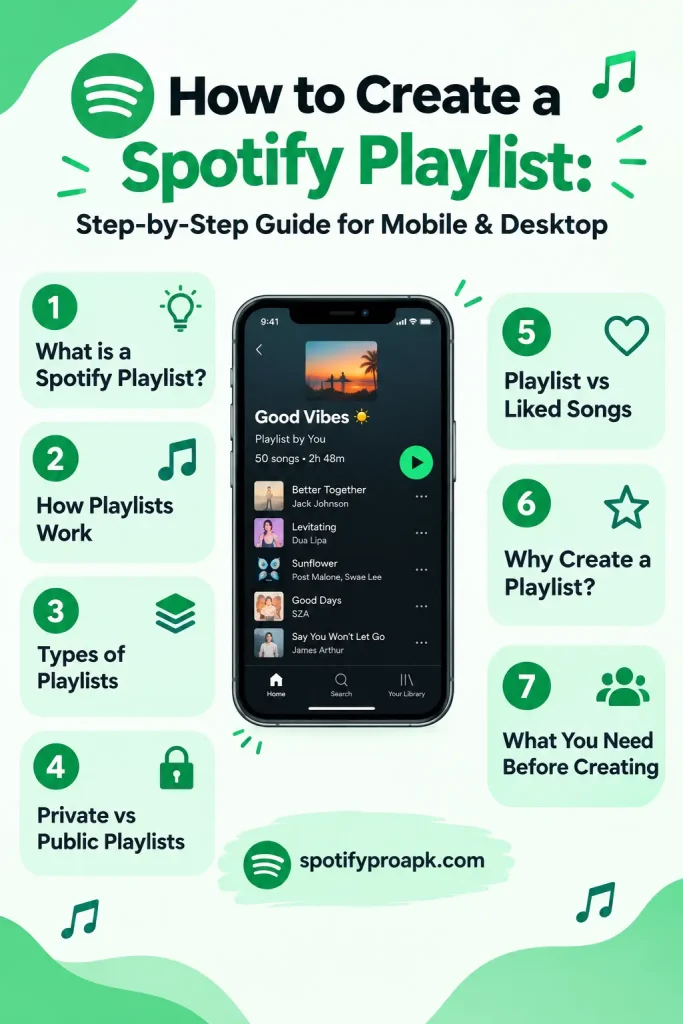
What Is a Spotify Playlist?
A Spotify playlist is a folder of music tracks that you want to listen to every day or on a special day. This folder contains all the music that you prefer to listen to in a particular mood while working out or during work.
Spotify’s Playlsit is combine system of the user’s manual and Spotify’s algorithm-driven collection. When you create a playlist, you can define the order of tracks or select Spotify’s “Enhance ” or “Smart Shuffle,” which adds tracks similar to the playlist genre.
Categories of playlists:
Behind the scene spotify categories playlist into 3 categories
Editorial playlist:
These playlists are curated by the music experts and genre experts of Spotify who showcase trends, new releases, es and most-listened songs of a particular genre
Algorithmic playlist:
These playlists are generated by Spotify’s mathematical algorithms. These playlists are generated from users’ past favorites alistened trackscks. These playlists are weekly Discover and Release Radar.
User-generated playlist:
These playlists are composed by the user for themselves, but they can keep these playlists public and also share them with friends and strangers.
Private vs Public Playlists
Spotify offers two types of playlists
Private:
These playlists are only visible to the user themselves. These playlists won’t appear in search results, can be shared, and are not visible to your followers.
Public:
The public playlist will be directly visible on Spotify’s profile, where anyone can visit, listen, like, and follow the playlist. Public playlists can be collaborative, where your invited friends can add or remove the tracks in the playlist.
Playlist vs Liked Songs: What’s the Difference?
Liked Songs:
It is a system-generated folder vehicle contals all those tracks that you liked; it can be referred to as a master repository of all.
Playlist:
It is your chosen music; liked songs can be thousands, but a playlist has the 20 most favorite tracks, which defines your mood.
Why Create a Spotify Playlist?
Creating the Playlist helps you to collect all your favorite music in one folder; despite of scatteredacrossn different albums, artists, and saved tracks, it helps you access your favorite music without searching for it.
Organize Your Favorite Music
The first and most important reason is to organize music, which helps you to make different mood-oriented playlists like workout, study, and party.
Discover and Save New Songs
A playlist defines your interests, so when you create a playlist, you are indicating to Spotify your taste. On the basis of thi,s spotify suggest you new music by discover daily and release radar. It also recommends tracks at the bottom of the playlist as well when your collection ends.
Create Playlists for Different Moods and Activities
Playlists define your taste + mood. You do not have to create a playlist based on genre always; Spotify gives you the freedom to make whatever you want. Try creating playlists for specific situations, such as:
- Workout music
- Study sessions
- Morning routines
- Long drives
- Relaxing evenings
- Parties
- Sleep and relaxation
- Travel
- Gaming
A playlist with a clear purpose is usually easier to organize and maintain.
Share Music With Friends
If you have a dedicated playlist of any genre track collection, it’s very easy to share it with your friends. Spotify allows sharing of playlists through social messaging apps like Instagram and Facebook.
What You Need Before Creating a Spotify Playlist
Creating a playlist does not require advanced equipment or a payment plan; you need a Spotify account.
Spotify Account Requirements
Simply, you have to create a Spotify account by inserting detail or by clicking Continue with Google or Apple; it creates your account. Once you’re in, you have the freedom to create Spotify playlists.
Free vs Premium: Does It Matter?
No, it doesn’t; you can create a Spotify playlist on the free version as well. However, some features may vary between free and premium accounts; for example, Spotify currently identifies mobile playlist track reordering as a Premium feature in its official playlist documentation.
Can You Create Playlists Offline?
Creating playlists offline is not recommended because Spotify needs to synchronize changes with your account, which can only be done with the internet. You can listen to downloaded tracks for free, but create your playlist online before going to travel.
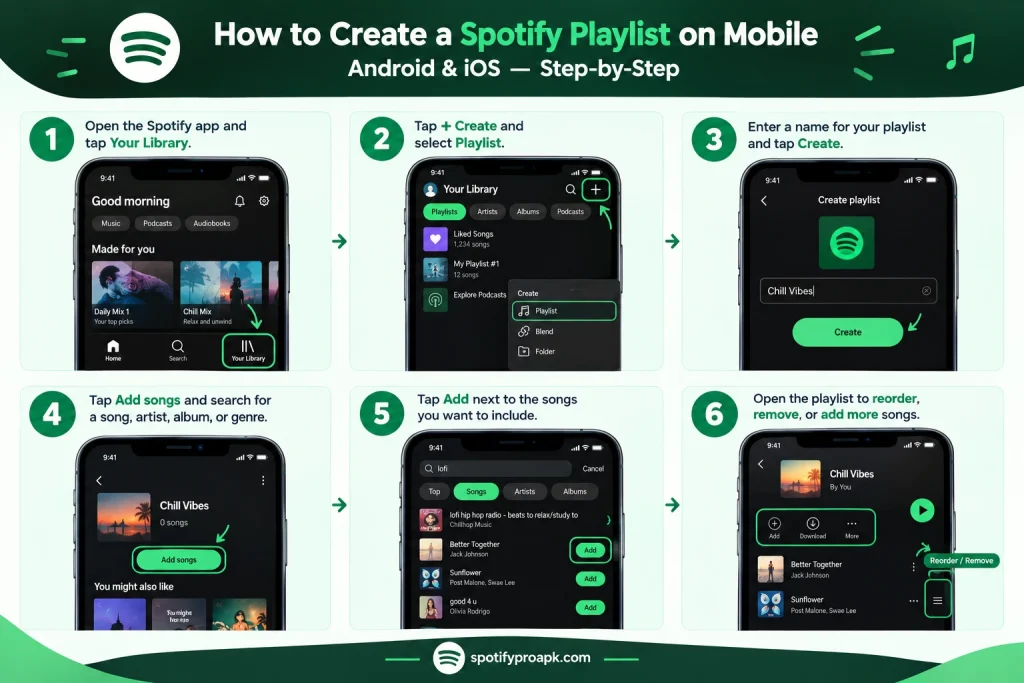
How to Create a Spotify Playlist on Mobile (Android and iOS)
- Open the Spotify app and tap Your Library.
- Tap + Create and select Playlist.
- Enter a name for your playlist and tap Create.
- Tap Add songs and search for a song, artist, album, or genre.
- Tap Add next to the songs you want to include.
- Open the playlist to reorder, remove, or add more songs.
To personalize it, edit the playlist name, description, or cover image.
How to Create a Spotify Playlist on Desktop
- Open Spotify on your computer and sign in to your account.
- Go to Your Library from the left sidebar.
- Click + Create and select Playlist.
- Enter a name for your playlist and add a description if you want.
- Click Add songs to find music using Spotify Search.
- Choose songs from artists, albums, or search results to add them to your playlist.
- Drag and drop songs to change their order, or use the song menu to remove tracks.
- Click the playlist cover or Edit option to customize the playlist image and details.
Your playlist will automatically appear in Your Library, where you can continue adding, editing, and organizing songs.
How to Add Songs to a Spotify Playlist
Add Songs From Search
- Search for the song.
- Open the song’s menu.
- Select Add to Playlist.
- Choose your playlist.
Add Songs From Another Playlist
You can also add songs that you discover in another playlist. Open the existing playlist, find the song you want, open its menu, and select Add to Playlist. This lets you build a new collection without searching for every track individually.
Add Recently Played Songs
If you recently listened to a song and want to save it to a playlist, look through your recently played music and open the song’s menu. Choose Add to Playlist and select the playlist you want to update.
This is particularly useful when you remember the song but cannot remember its title well enough to search for it.
Add Songs From an Artist or Album
You can discover music by opening an artist or album and selecting songs that fit your playlist. For example, if you are creating a workout playlist, you can open an artist’s page, listen through their popular tracks, and add suitable songs to your playlist. You do not have to add an entire album; individual songs can be added to your playlist.
Add Multiple Songs Quickly
If you are building a playlist from a large collection of songs, add tracks in batches rather than creating the playlist one song at a time.
On desktop, Spotify also supports drag-and-drop for adding tracks to a playlist. A useful approach is to first collect songs that match your theme and then organize their order afterward.
How to Edit a Spotify Playlist
You can easily edit a Spotify playlist to keep your music organized and up to date. Open the playlist in the Spotify app or Web Player, then use the available editing options to:
- Change the playlist name and description.
- Change the playlist cover to personalize its appearance.
- Reorder songs by moving tracks into your preferred order.
- Remove songs you no longer want.
- Make the playlist public or private through its privacy settings.
- Delete the playlist if you no longer need it.
After making changes, Spotify saves your playlist automatically, so you can access the updated version from Your Library.
How to Create a Collaborative Spotify Playlist
What Is a Collaborative Playlist?
A collaborative playlist is a playlist that is shared, and a collaborator can edit it.
How to Turn On Collaboration
Spotify offers an Invite collaborator option from the playlist menu. Open your playlist, tap or click the three-dot menu, and select Invite collaborator.
How to Invite Friends
After selecting Invite collaborators, share the generated link with your friends. The link is valid for 7 days; after that, er thatt it expires.
How to Stop Collaboration
If you no longer want someone to collaborate, Spotify provides controls for removing individual collaborators.
On mobile, tap the profile pictures below the playlist name, select the menu next to the person’s name, and choose Remove as collaborator. Similar controls are available on desktop.
How to Share a Spotify Playlist
- Open the playlist.
- Select Share.
- Choose Copy Link.
- Paste the link wherever you want to share it.
How to Make a Good Spotify Playlist
Having knowledge of how to create a Spotify playlist is easy, but creating one that actually defines you and entertains your friends(if collaborative) needs thought.
Choose a Clear Theme
Staring creating spotify playlist with a clear theme; despite random genres and liked tracks have to define the mood and theme of it, for example, 2000s Pop Hits, Deep Focus, Morning Workout, or Chill Vibes. A clear themehelps youo decide which songs belong to it and which don’t
Start With Your Strongest Songs
First tracks are the initial impression of your playlist. If you made the playlist public or collaborative, placing your strongest songs first will be better, which hooks and entertains the audience; otherwise, they get bored.
Create a Smooth Song Flow
The transition between songs must be smooth, and they shouldn’t feel disconnected. Consider factors such as:
- Energy level
- Tempo
- Genre
- Mood
- Vocal style
- Production style
A good playlist can gradually move between different styles while maintaining an overall feeling.
Mix Familiar and New Songs
Familiar tracks can make the audience unhooked if they know each song; try placing unfamiliar and new tracks between the familiar ones so it gets their interest.
Match Songs to the Mood
The songs should fit the purpose of the playlist. For example, a study playlist may work better with music that does not constantly demand attention, while a workout playlist may benefit from higher-energy tracks.
Avoid Adding Too Many Similar Songs
Following a theme is good, but having a consistent theme does not mean every song needs to sound almost identical. If several songs have extremely similar sounds, tempos, or structures, the playlist may feel repetitive. Use some variation while keeping the overall theme consistent.
Keep Your Playlist Updated
Remove the no-longer-loved song, add a new track, and always update your playlist with the time.
Advanced Spotify Playlist Tips
Once you know how to create a Spotify playlist, follow these advanced tips to make your playlist more entertaining and fresh.
Use the 80/20 Rule
Always use 80% of the songs from the theme and add 20 % new or unexpected songs.
Consider Tempo and Energy
Arrange songs according to their tempo, energy, and mood. For example, a workout playlist can gradually move from warm-up tracks to high-energy songs and then slower tracks for the cooldown.
Create a Strong Opening and Ending
Start your playlist with the strongest song and also end the playlist with a familiar and satisfying song which audience remembers; like in concerts, the last song should always be a farewell.
Use Spotify Recommendations to Find Similar Songs
Use Spotify’s recommended songs and related music suggestions to discover tracks that match the songs already in your playlist.
Refresh Older Playlists Regularly
Creating playlist not one time process; it needs daily attention. Remove songs that no longer fit and add discoveries. Regular updates can keep an old playlist fresh and relevant.
Optimize Your Playlist Name and Description
Use a clear, descriptive playlist name such as Workout Hits, Study Focus, or Late Night Drive. A short description can explain the playlist’s mood, genre, or purpose.
Choose an Attractive Playlist Cover
A relevant cover of the playlist helps to clearly identify the playlist’s mood, genre, and purpose without seeing the description.
Spotify Playlist Ideas for Every Occasion
- Workout Playlists: Energetic songs for gym sessions, running, and exercise.
- Study Playlists: Calm tracks for studying, reading, and learning.
- Party Playlists: Upbeat songs for parties and celebrations.
- Road Trip Playlists: Favorite tracks for long drives and travel.
- Relaxing and Sleep Playlists: Soft music for relaxation and bedtime.
- Romantic Playlists: Love songs for dates and special moments.
- Focus and Productivity Playlists: Background music for work, coding, and concentration.
- Morning Playlists: Fresh and positive songs to start your day.
- Gaming Playlists: High-energy or atmospheric music for gaming sessions.
- Throwback Playlists: Favorite songs from a specific decade or era.
How to Discover More Songs for Your Playlist
Spotify offers several ways to discover new music for your playlists. You can use Recommended Songs, Discover Weekly, Release Radar, similar artists, albums, and public playlists to find tracks that match your taste and playlist theme.
Common Spotify Playlist Problems
You may be signed out, using an outdated app, or experiencing a temporary connection issue. To solve this, you need to sign in, update Spotify, and try again with a stable internet connection.
The song may be unavailable in your region or temporarily removed from Spotify. To resolve this, search for the track again and try adding an available version.
You may be using a different Spotify account, or the library has not refreshed. Solution for this is to check your account and restart Spotify to refresh Your Library.
A track may have been removed, become unavailable, or changed due to licensing restrictions. Solution: Search for the song again and add an available version.
This issue may occur because collaboration may not be enabled, or the invitation link may have expired. Enable collaboration and send a new invitation link; the issue will be resolved.
The main cause may be a weak internet connection or a temporary Spotify synchronization issue that may prevent changes from saving. To resolve this firstly check your connection, then restart Spotify, and try the change again.
Devices may be using different accounts,s or Spotify may not have synchronized recent changes. This could be resolved by confirming the same account is signed in on each device and restarting the Spotify app.
FAQs
Final Verdict
Creating a Spotify playlist is a simple way to organize your favorite songs, discover new music, and build collections around different moods and activities. Whether you use Spotify on mobile or desktop, you can easily add, arrange, customize, and share your tracks. Choose a clear theme, keep your playlist fresh, and let your music collection reflect your personal taste.